Give a photo the warm color and hand-painted feel of a storybook animation scene.
Up to 2 free edits daily.
Example
OriginalEdited
Try a sample
Image editing examples
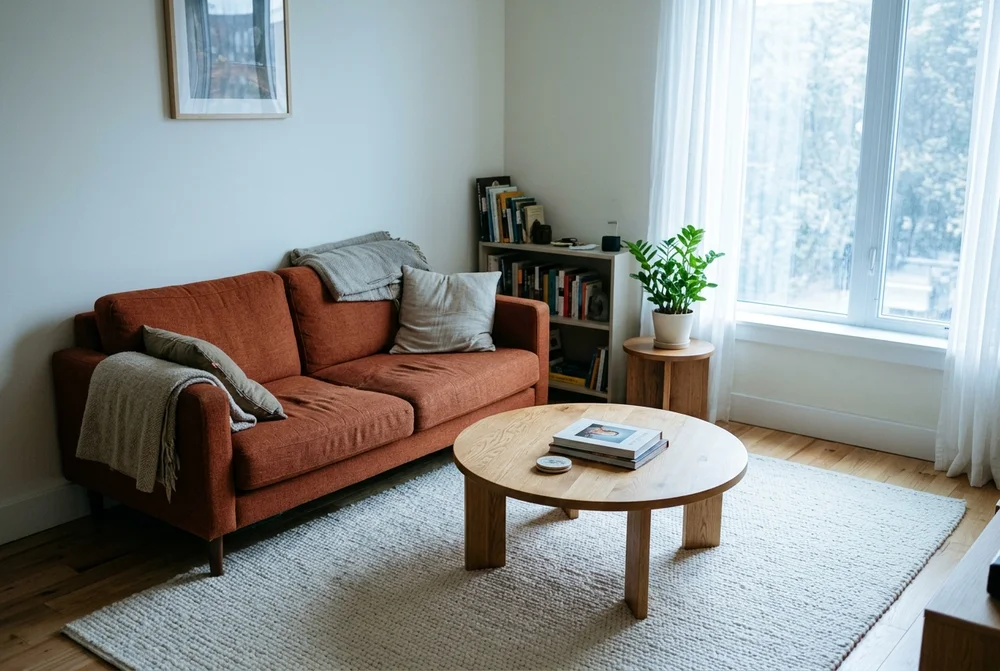
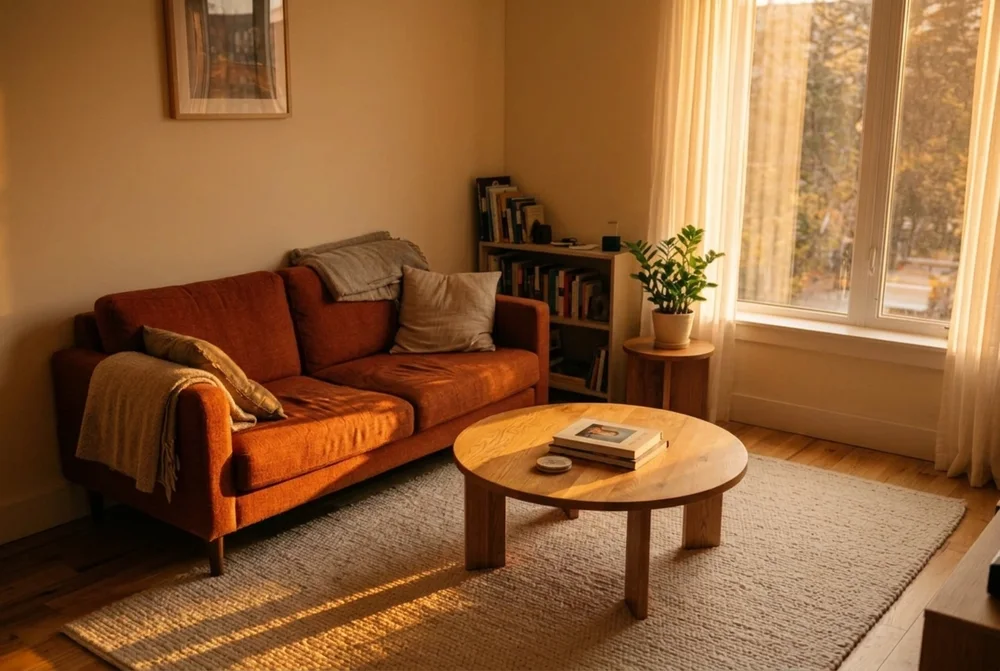
Warm up a room with afternoon light
SourceResult
What should change? Change the cool morning light to warm late afternoon sunlight entering from the window on the right. Add long, soft shadows on the floor.
What should stay the same? Keep the same room layout, orange sofa, round table, rug, plant and framing.
Edited with Nano Banana 2.1
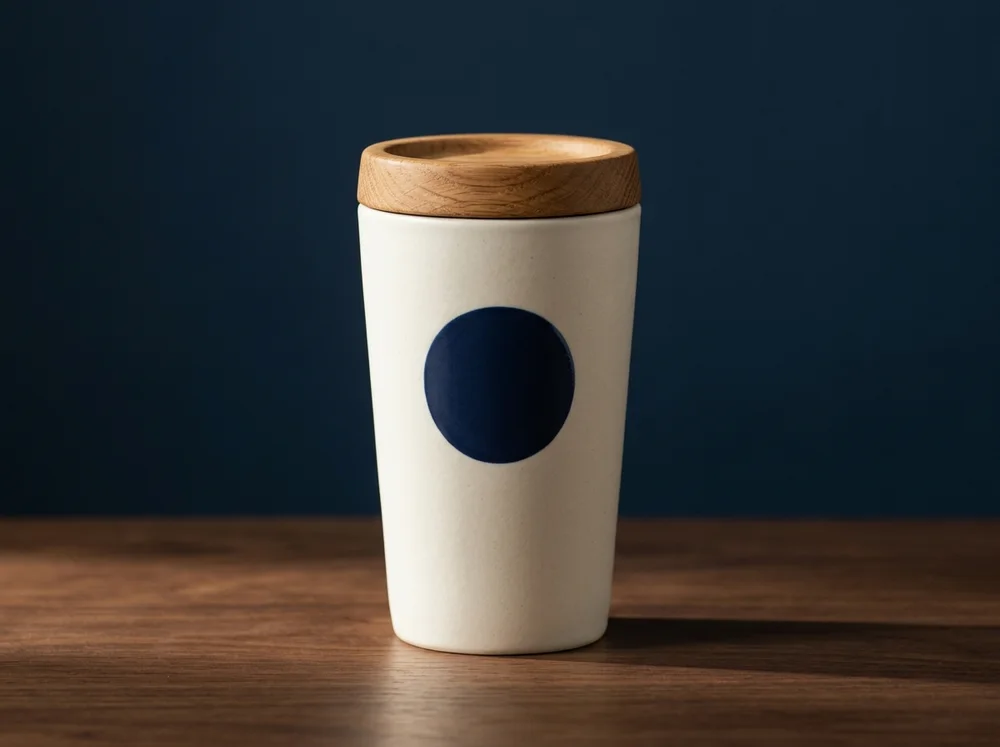
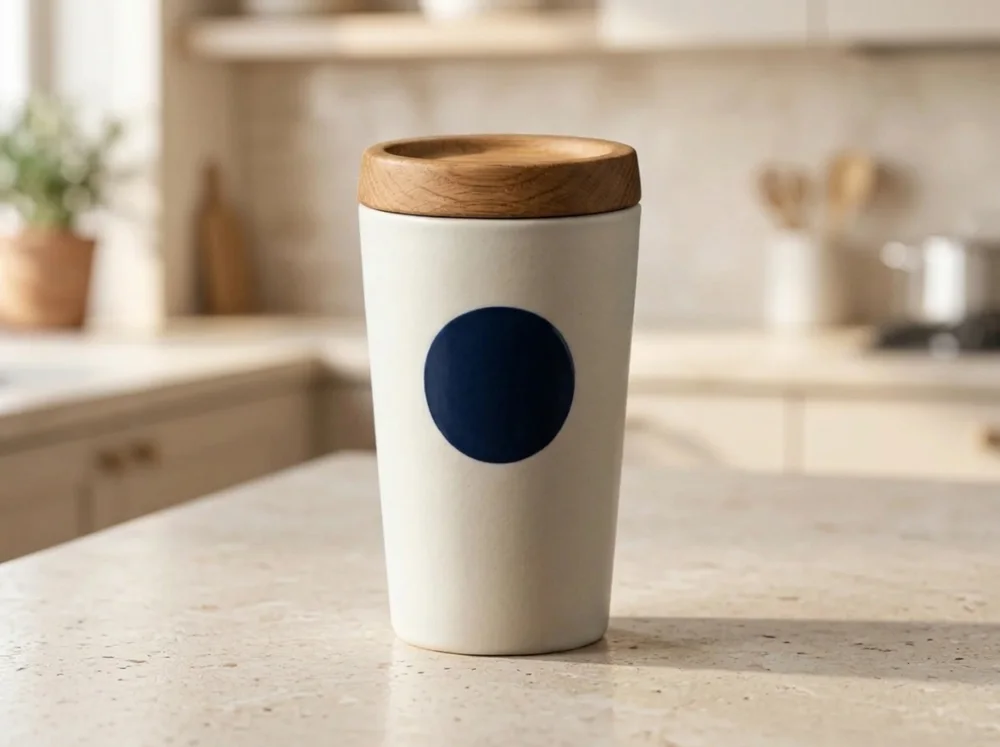
Change a product background
SourceResult
What should change? Replace the dark blue backdrop and table with a pale stone countertop in a sunlit neutral kitchen. Add a natural contact shadow.
What should stay the same? Keep the ivory tumbler, oak lid, blue circular emblem, size in frame and camera angle unchanged.
Edited with Nano Banana 2.1
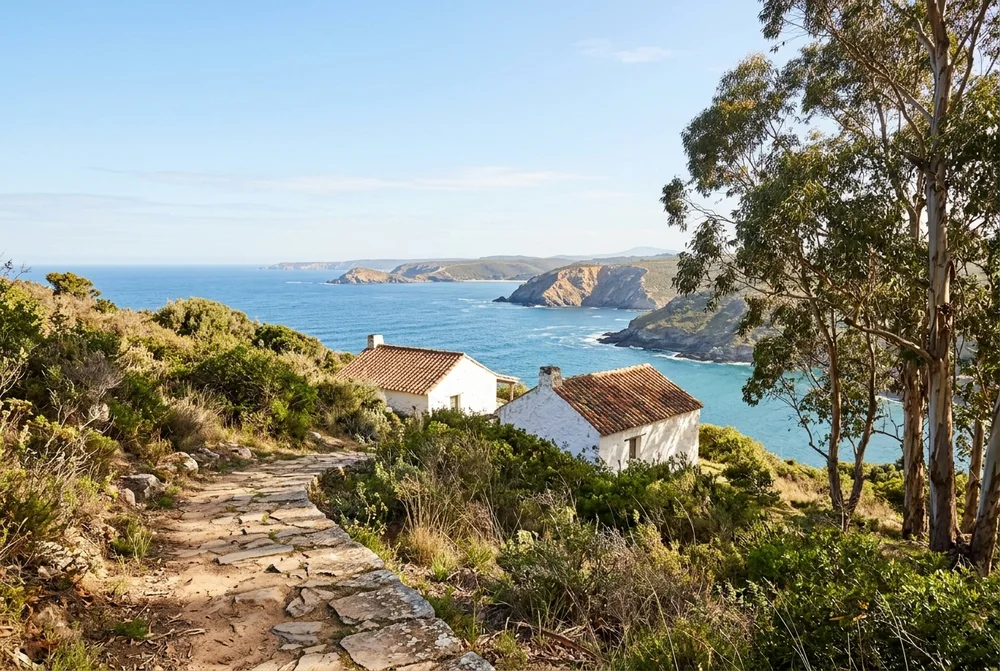
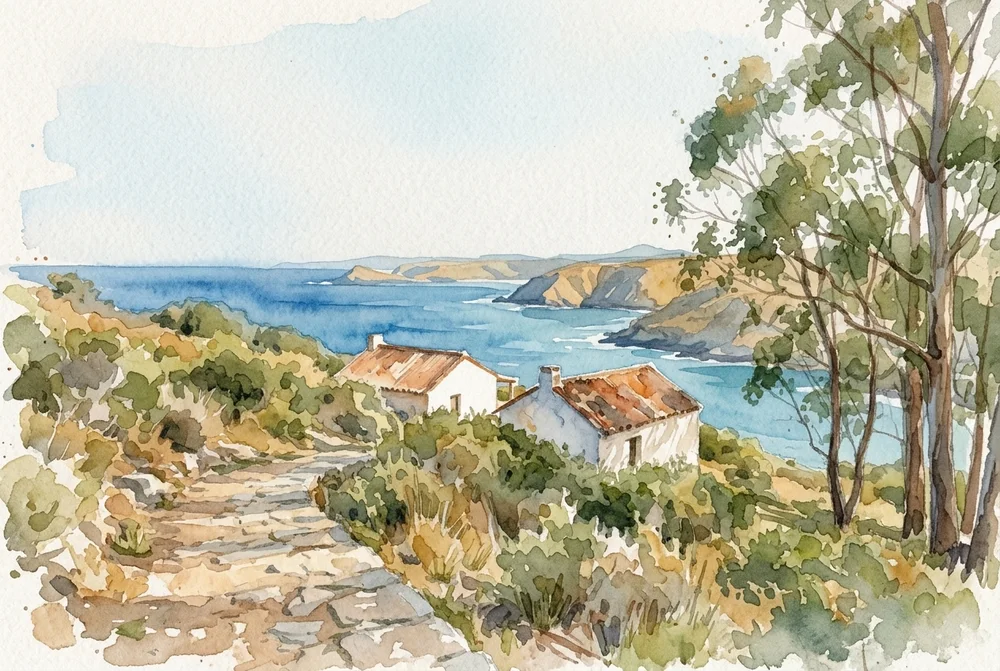
Turn a coastal photo into watercolor
SourceResult
What should change? Render the landscape in soft watercolor with loose brushwork, transparent washes and visible paper grain.
What should stay the same? Keep the same path, houses, coast, tree positions and viewpoint.
Edited with Nano Banana 2.1
How it works
Choose a reference
Start with one photo or an image from your history.
Describe the edit
Say what should change and specify any details to preserve.
Review and download
Compare both images, then save the result or use it for another edit.
Questions about image editing
When is my image uploaded?
The preview stays on your device. Your image is uploaded when you submit an edit. Guest edits require a human verification check.
Which images can I use?
Choose a still JPEG, PNG, or WebP up to 24 MB and 16 megapixels. Large files are optimized before upload.
When do I use credits?
You see the cost before submitting. Credits are used when the result is saved.
Will the edit preserve every detail?
Describe the details you need to keep and compare the result before use. Faces, product details, and text can change.