AI Style Transfer

Turn a photo into watercolor, anime, pixel art, or a pencil sketch. Guide the style and say which details to preserve.

Up to 2 free edits daily.

Compare the source and result
Example
Coastal cottages and a stone path overlooking a blue inletWatercolor edit of the coastal cottages, path, and blue inlet

Try a sample

Image editing examples
Reference image

Your photo stays in this browser until you submit it.

Visual style
Preserve detailsInstructions added

When you submit, we send a copy of your reference image and editing instructions to Kie.ai to generate the result. Privacy

Image editing examples

Turn a coastal photo into watercolor
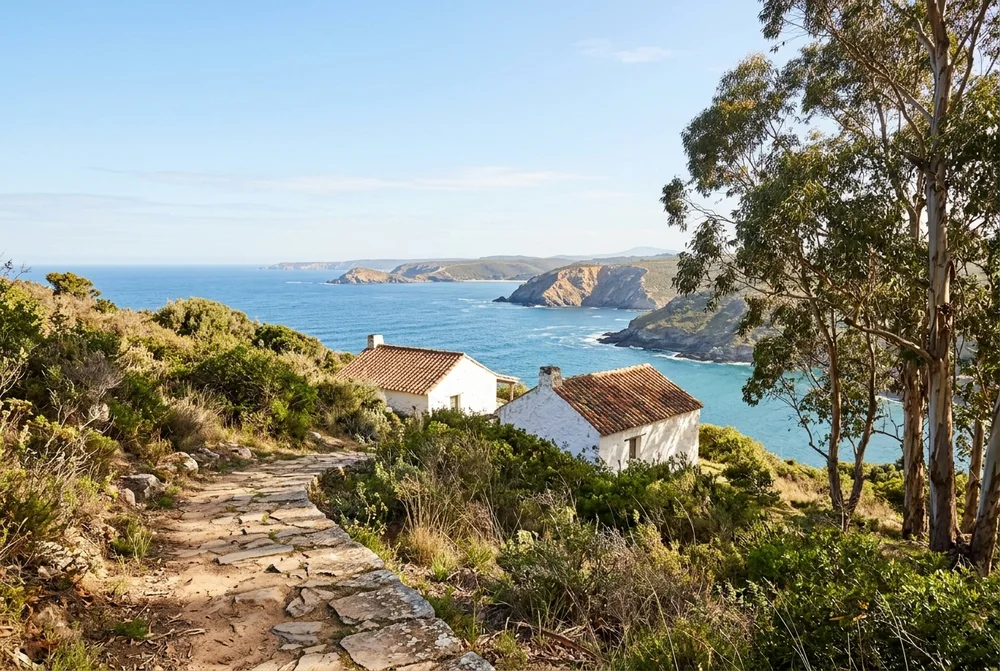
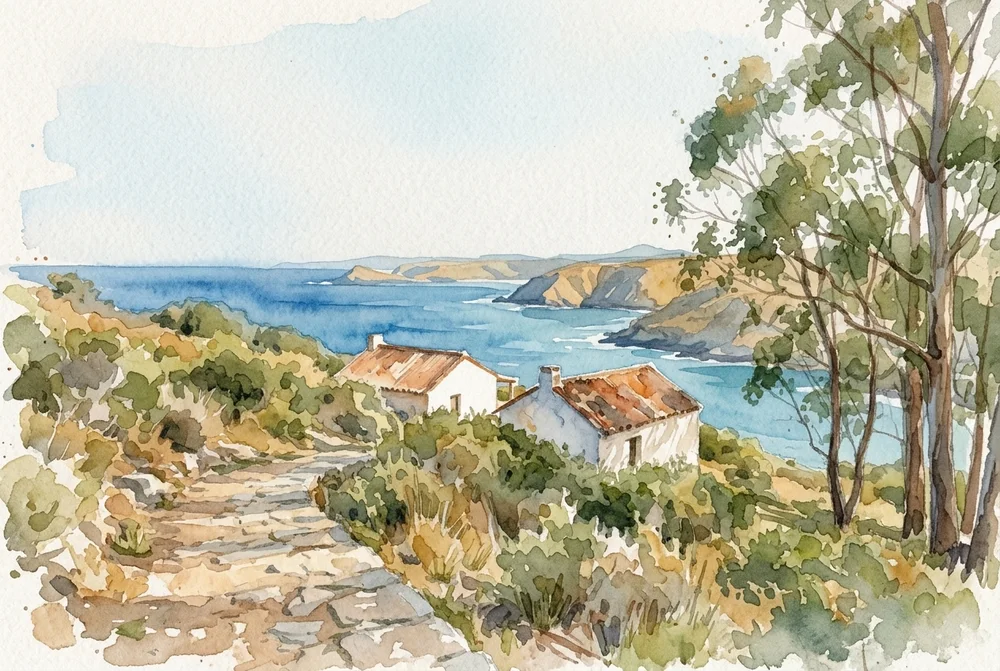
Source
Coastal cottages and a stone path overlooking a blue inlet
Result
Watercolor edit of the coastal cottages, path, and blue inlet

What should change? Render the landscape in soft watercolor with loose brushwork, transparent washes and visible paper grain.

What should stay the same? Keep the same path, houses, coast, tree positions and viewpoint.

Edited with Nano Banana 2.1

Apply an art style to your image

  1. Start with a clear photo or illustration. A simple composition helps keep the important details visible after restyling.
  2. Choose watercolor, anime, pixel art, graphite sketch, or cinematic. Adjust the suggested prompt and describe which details to preserve.
  3. Check the subject and composition in the preview before downloading or using the result for another edit.

Frequently asked questions

Can I customize the suggested style?
Yes. Change the prompt to add a palette, lighting, or texture. For precise pixel art, describe the edge treatment and how many colors you want.
How do I keep the original composition?
In the preservation field, name the parts that matter, such as the crop, poses, background layout, or product shape. Compare them in the result before saving.